
How to Take Advantage of Apple In-App Events?
Learn what Apple In-App Events are, how they appear across the App Store, how to configure them in App Store Connect, and how to optimize their metadata, creative assets, promotion, and performance.
This article is a guest contribution from ShyftUp, an app growth agency specializing in App Store Optimization, Apple Search Ads, Google App Campaigns, Meta Ads, TikTok Ads, and related mobile growth services. ShyftUp also offers an ASO audit for teams looking to review their app store presence.
App Store competition makes it important for app marketers to use every relevant discovery surface available to them. Apple In-App Events provide one such opportunity by allowing apps and games to promote timely experiences directly inside the App Store.
In-App Events can help an app highlight competitions, premieres, livestreams, major updates, new seasons, and other noteworthy experiences. This guide explains what the feature is, how users encounter event cards, how to configure an event in App Store Connect, and how to improve the quality and reach of an event once it is live.
What Are Apple In-App Events?
Apple In-App Events are timely experiences that take place inside an app or game. Examples include game competitions, movie premieres, livestreams, challenges, content launches, and similar activities that users can discover through the App Store.
Apple provides the official product definition and implementation guidance on its In-App Events developer page.

Event cards can appear in several parts of the App Store. Depending on the context, users may encounter them on an app's product page, in search, in recommendations, in editorial placements, and across the Today, Games, and Apps areas.

How Apple In-App Events Work
After an In-App Event is configured, approved, and published, users can encounter it as an event card in the App Store. A card can include the event name, a concise description, and an image or video that represents the experience.
Tapping an event card opens an event details page with additional information. The details can explain the event more fully and can indicate whether an in-app purchase or subscription is required to participate.
Users can also choose to receive an App Store notification when an upcoming event begins. The event details page can be shared with other people through supported sharing options such as Messages and social platforms.
In-App Events can contribute to both acquisition and re-engagement. If a person does not yet have the app, the event surface can give them a path to download it. Existing users can use the Open action to move from the event card or details page into the relevant experience inside the app.
For that journey to work well, the event should point users to the appropriate in-app destination rather than simply opening a generic landing screen.
How to Create In-App Events
In-App Events are created and managed through App Store Connect. Start from the app's In-App Events area, create a new event, and then complete the event information required for review and publication.
- Enter a reference name. Use an internal name that makes the event easy to identify in App Store Connect. The reference name can contain up to 64 characters and is not shown publicly in the App Store.
- Add the public event name. This is the name users see on the App Store. The event name can contain up to 30 characters.
- Write the short description. Summarize the event in up to 50 characters. This text is used on the event card and can appear on App Store discovery surfaces.
- Write the long description. Add more context for users who open the event details page. The long description can contain up to 120 characters.
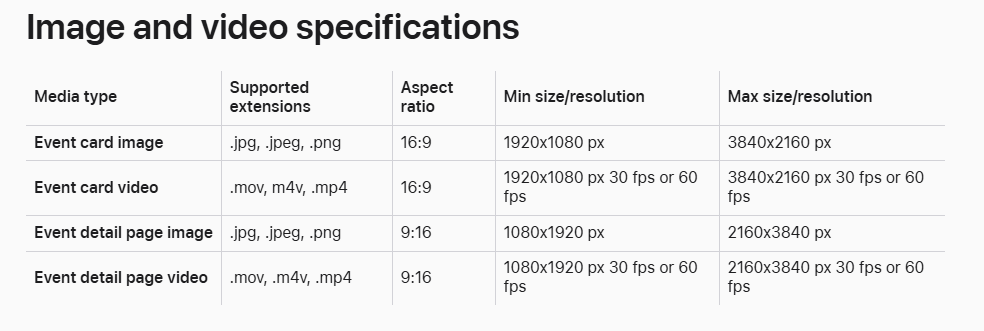
- Upload event media. Add an image that accurately represents the event. Video is optional, but motion can help the card communicate an experience more dynamically when the creative is designed for looping.
- Select the appropriate event badge. Apple provides seven event categories. Choose the one that most accurately describes what users will experience.
Apple In-App Event badge types
Live Event: A real-time activity that users can experience at the same time, such as a livestreamed concert, broadcast, or sporting event.
Premiere: The first release of new content or media, such as a movie, episode, or audio release.
Challenge: An activity in which users work toward a defined goal before the event ends, such as completing a fitness target or a set of game levels.
Competition: An event in which users compete for a score, position, or reward, such as a tournament.
New Season: New seasonal content, storylines, media, or experiences that build on an existing app or game.
Major Update: A substantial new feature, game mode, level, content release, or other meaningful addition rather than a routine bug fix or minor interface change.
Special Event: A limited-time event that does not fit another badge type, such as a collaboration spanning several activities or experiences.
- Choose the primary language. Select the language that corresponds to the event metadata you are entering.
- Configure country or region availability. Decide which storefronts should display the event. If regional availability is not restricted, the event can be made available across the applicable storefronts.
- Set discovery, start, and end timing. Configure when the event should become visible and when the underlying experience starts and finishes. The original article notes that an event can be promoted ahead of its start date by up to 14 days.
- Add an event deep link. The link should send users from the event card or details page to the relevant destination inside the app. A universal link or custom URL can be used, with universal links offering a robust mechanism for connecting web and app destinations.
Apple provides implementation guidance for universal links and related app-to-web linking.
Best Practices for In-App Events
Publishing an event is only the first part of the process. The event's positioning, metadata, creative assets, promotion, and performance analysis all influence how effectively the feature contributes to visibility and engagement.
Promote the event outside the App Store
Support the event with the channels your audience already uses. Email, social media, advertising, promotional video, and editorial content can all direct more people toward the event details page. When appropriate, include a direct event link so users can reach the relevant App Store destination without unnecessary steps.
Use the App Store Connect API when automation helps
Teams managing many apps, localizations, or scheduled events can use the App Store Connect API to streamline parts of their event workflow, including event metadata management and submission.
Be selective about what qualifies as an event
Not every recurring in-app activity is a strong candidate for an App Store event. Challenges, competitions, special content launches, meaningful updates, and limited-time experiences are more appropriate than routine daily tasks, recurring rewards, or generic brand promotion.
Price-focused promotions should also be treated carefully when they do not introduce meaningful new content, features, or goods. The event should describe a real user experience rather than function as a general advertisement for the app.
Choose the badge that matches the experience
The badge appears with the event and gives users an immediate cue about the type of experience being promoted. A precise badge makes the card easier to understand and keeps the event aligned with the metadata users see.
Write accurate event metadata
Event metadata should describe the event itself and set realistic expectations about what users will find after opening it. Avoid using the event name or description as generic promotional copy for the broader app.
Accurate metadata also matters during review. Misleading, unverifiable, or poorly formatted claims can create unnecessary friction in the submission process.
Design media for the event, not just the app
Event imagery should clearly communicate the experience being promoted. Creative assets should be visually engaging while staying faithful to the event itself.
For video, consider how the asset behaves when it automatically repeats. A clean loop can make the event preview feel intentional instead of ending abruptly. Preview the event card and details page in App Store Connect before submission so important visual content is not lost to cropping or overlays.
Submit a featuring nomination when the event is noteworthy
App teams can share significant upcoming developments with Apple's editorial team for consideration. Relevant candidates can include new launches, substantial updates, exclusive content, seasonal moments, and In-App Events.
Apple documents this workflow in its featuring nomination guidance.
Follow Apple's metadata and creative guidelines
- Use normal capitalization and punctuation.
- Avoid claims that cannot be objectively verified, including unsupported statements such as being the best or number one.
- Avoid hard-coding specific prices into event metadata because prices and currencies can differ by region.
- Avoid unnecessary text and logos inside event media when the information is already communicated by the App Store interface.
- Do not build your own borders or gradients into assets simply to imitate App Store treatment.
- Maintain visual continuity between the event card and the event details experience.
- Only submit media and metadata that you own or are licensed to use.
Set event priority deliberately
When several events are active or upcoming, consider which one should receive the greatest visibility on the product page. Event ordering and priority should reflect the experiences that are most relevant to users rather than being left unmanaged.
Measure event performance in App Analytics
After publication, use App Analytics in App Store Connect to understand how users interact with your events. Review the acquisition and engagement signals available for each event, including downloads attributed to the event, discovery sources, impressions, event details page views, app opens, and notification opt-ins where available.
Comparing these signals across events can help determine which event concepts, placements, and creative approaches are most useful for your audience. Use those findings to refine future event planning rather than treating each launch as an isolated campaign.
Final takeaway
Apple In-App Events can give apps another way to increase App Store visibility, promote meaningful moments, attract prospective users, and reconnect with existing audiences. Because competing apps can use the same feature, results depend on choosing worthwhile events, presenting them accurately, promoting them thoughtfully, and measuring what happens after publication.
Treat each event as an opportunity to learn. The more carefully you evaluate its performance, the better prepared you are to improve the next event's timing, creative direction, metadata, and promotional strategy.